WA Account
The WA Account(Previously referred to as "Channel," so if you see the term "Channel" anywhere in the platform, it means your WA Account.) section in WhatsEra allows you to integrate your WhatsApp account with the platform to unlock its full suite of features. From sending messages to enabling automation and leveraging other tools, your WhatsApp account acts as the foundation for all activities within WhatsEra.
Written By WhatsEra
Last updated 9 months ago
Adding Your WhatsApp Account
To add your WhatsApp account to WhatsEra, follow these simple steps:
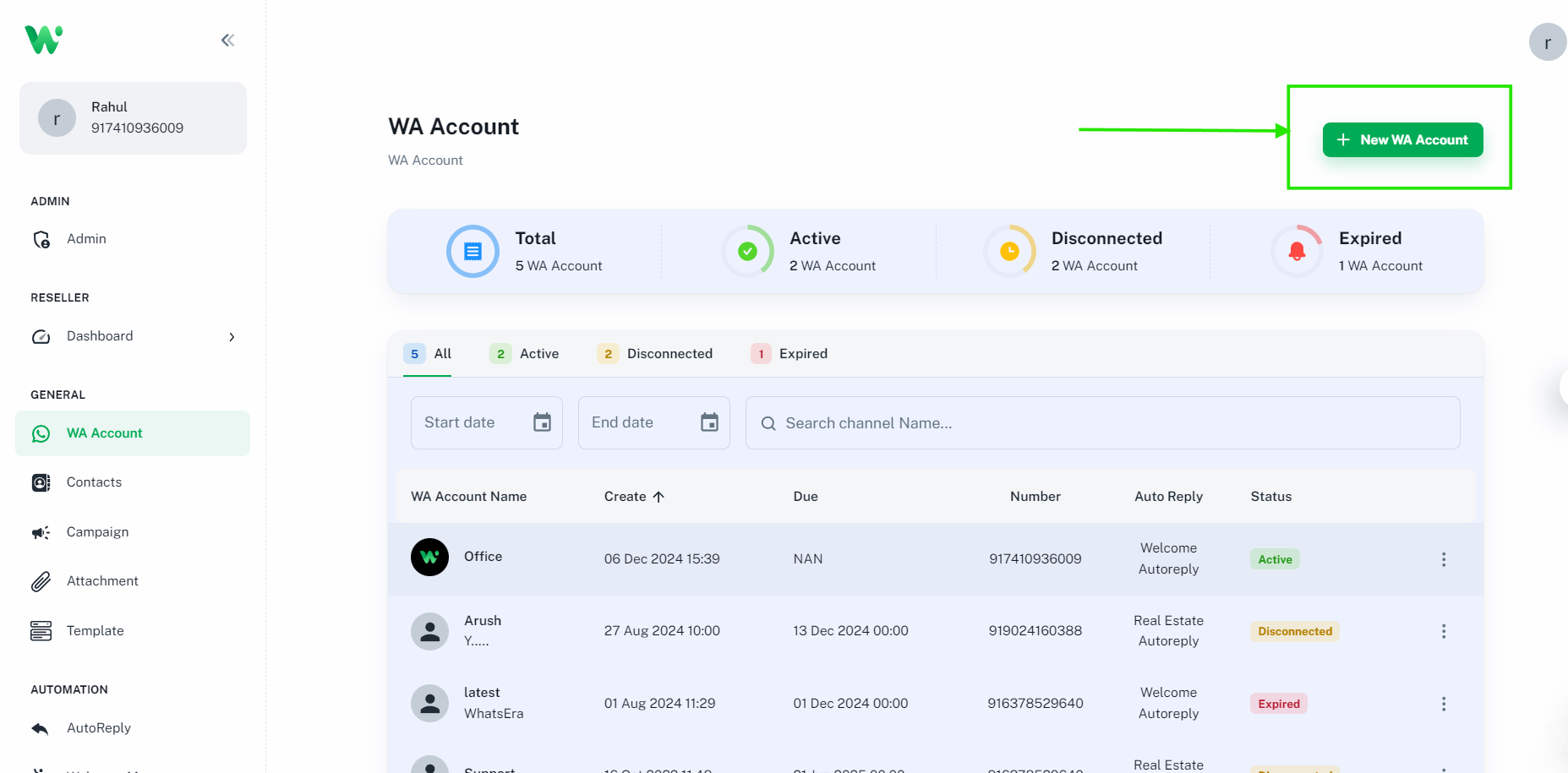
Go to the WA Account Section:
Navigate to the WA Account option in the WhatsEra dashboard.Click on Add WA Account:

Provide a unique name for the account.
This name is for your reference, especially useful if you manage multiple accounts.
Generate and Scan the QR Code:
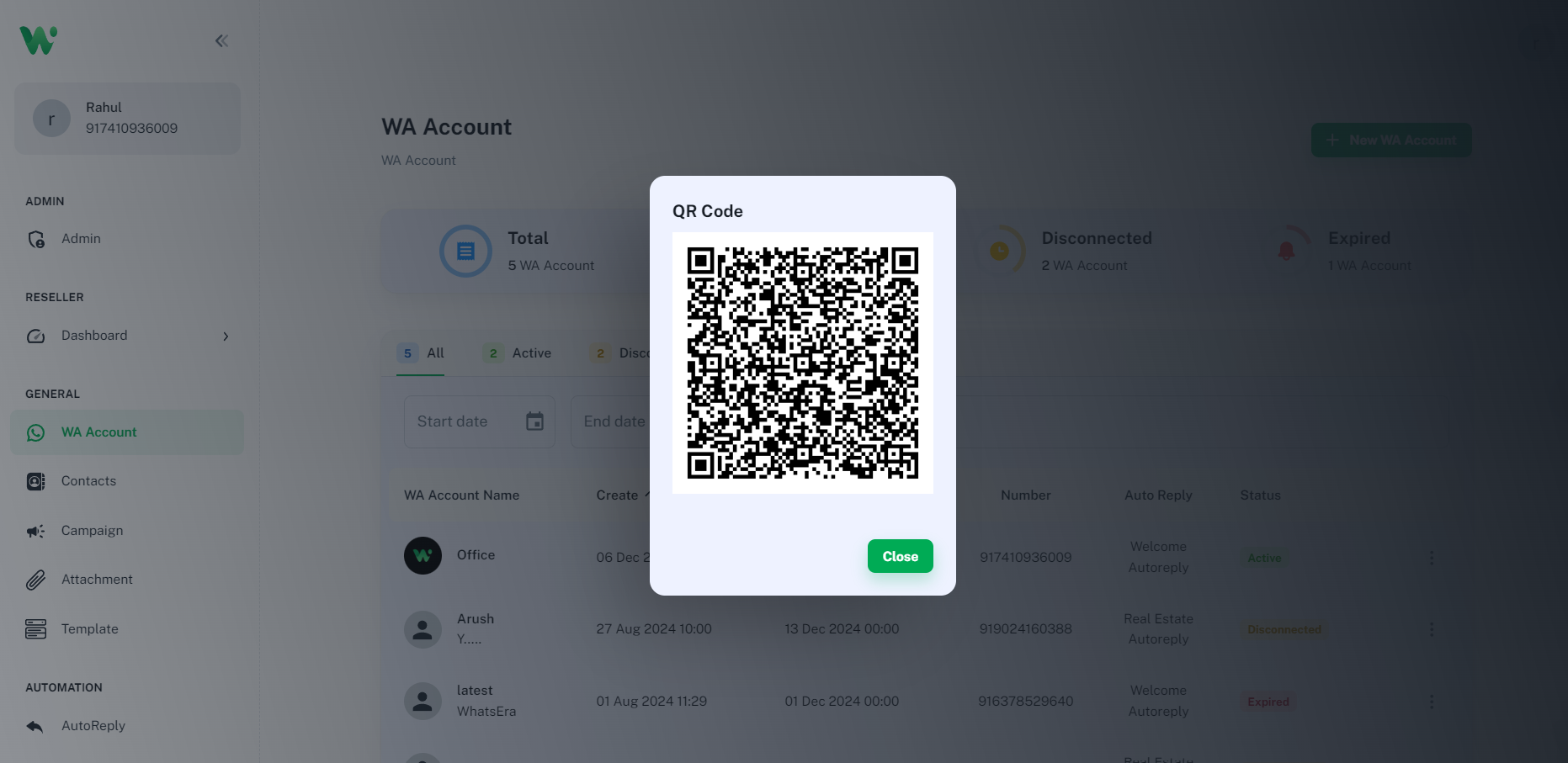
Submit the details, and a QR code will appear.
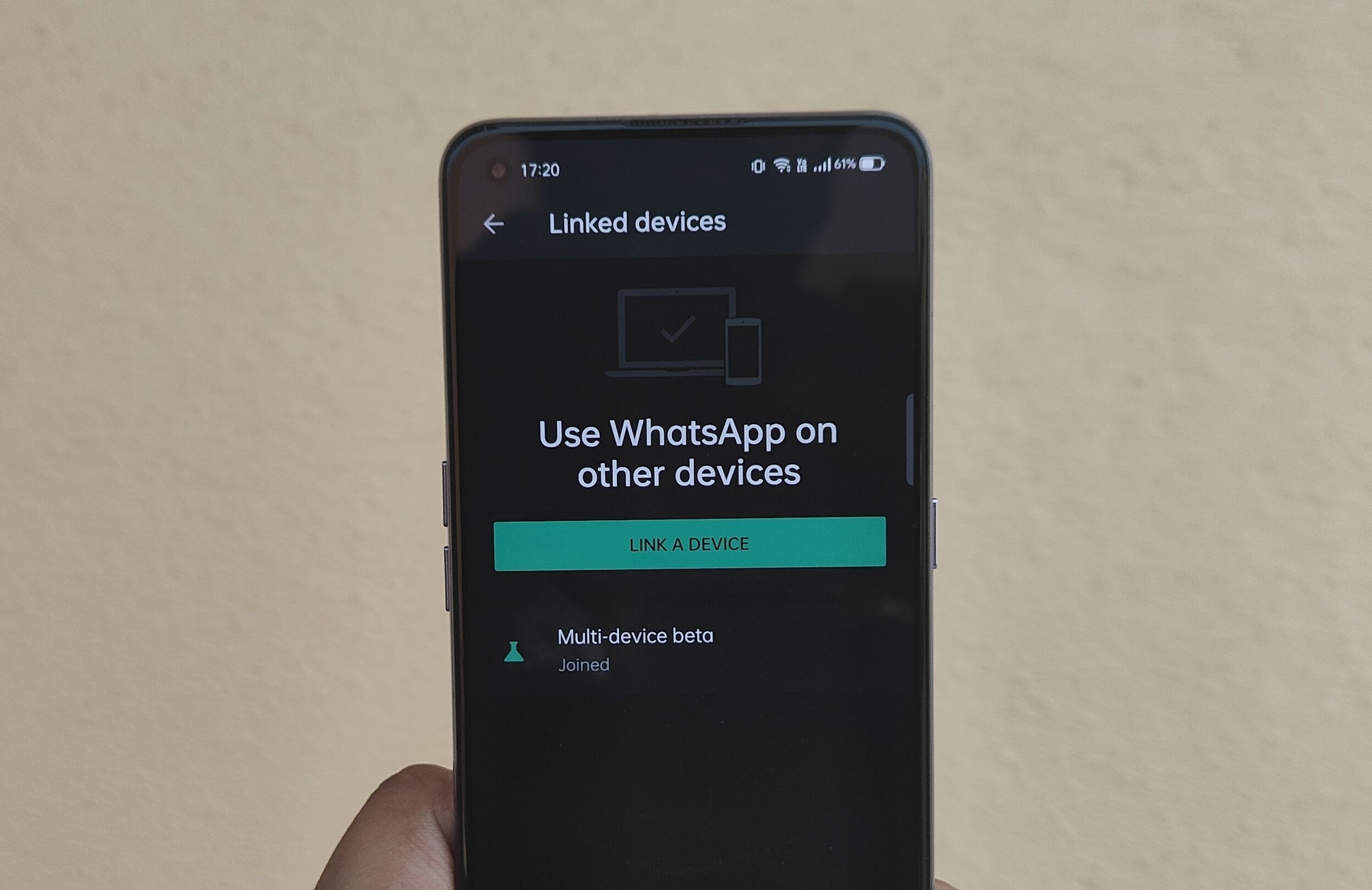
Open WhatsApp on your mobile device.
Go to Linked Devices in your WhatsApp settings and scan the QR code as you would for WhatsApp Web.
Account Activation:
Once scanned, your WhatsApp account will be added to WhatsEra.
The status will show as Active, and the mobile number and profile picture will be displayed.
Important Note:
If the profile picture isn’t visible, it means the account isn’t connected. Please reconnect it to ensure functionality.
Managing Your WA Account
Once your account is added, you can manage it using the options available under the three-dot menu on the right side of the WA Account page:
Refresh:
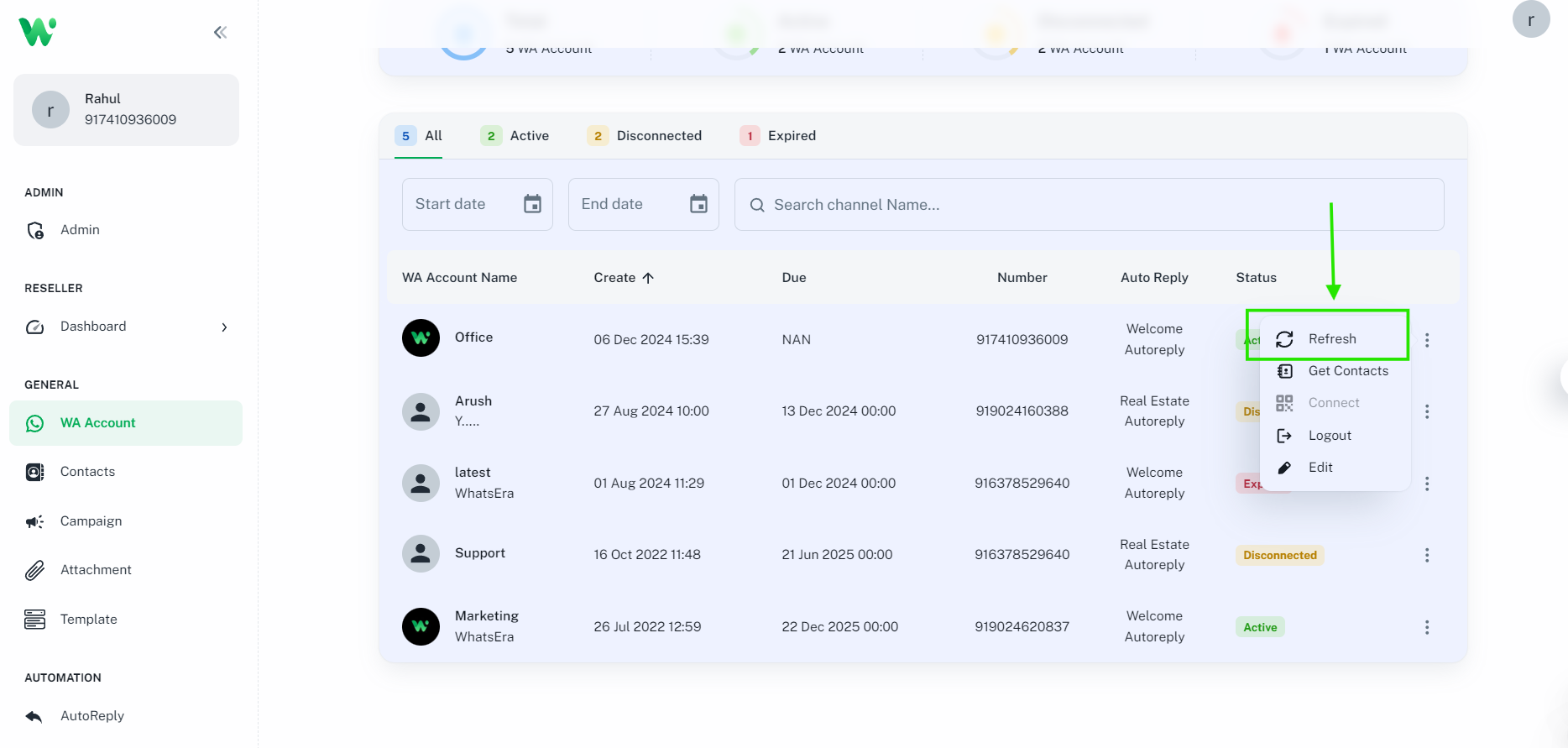
Use this option if your account goes into sleep mode.
Clicking refresh will reactivate the account and restore functionality for all activities.
Get Contacts:
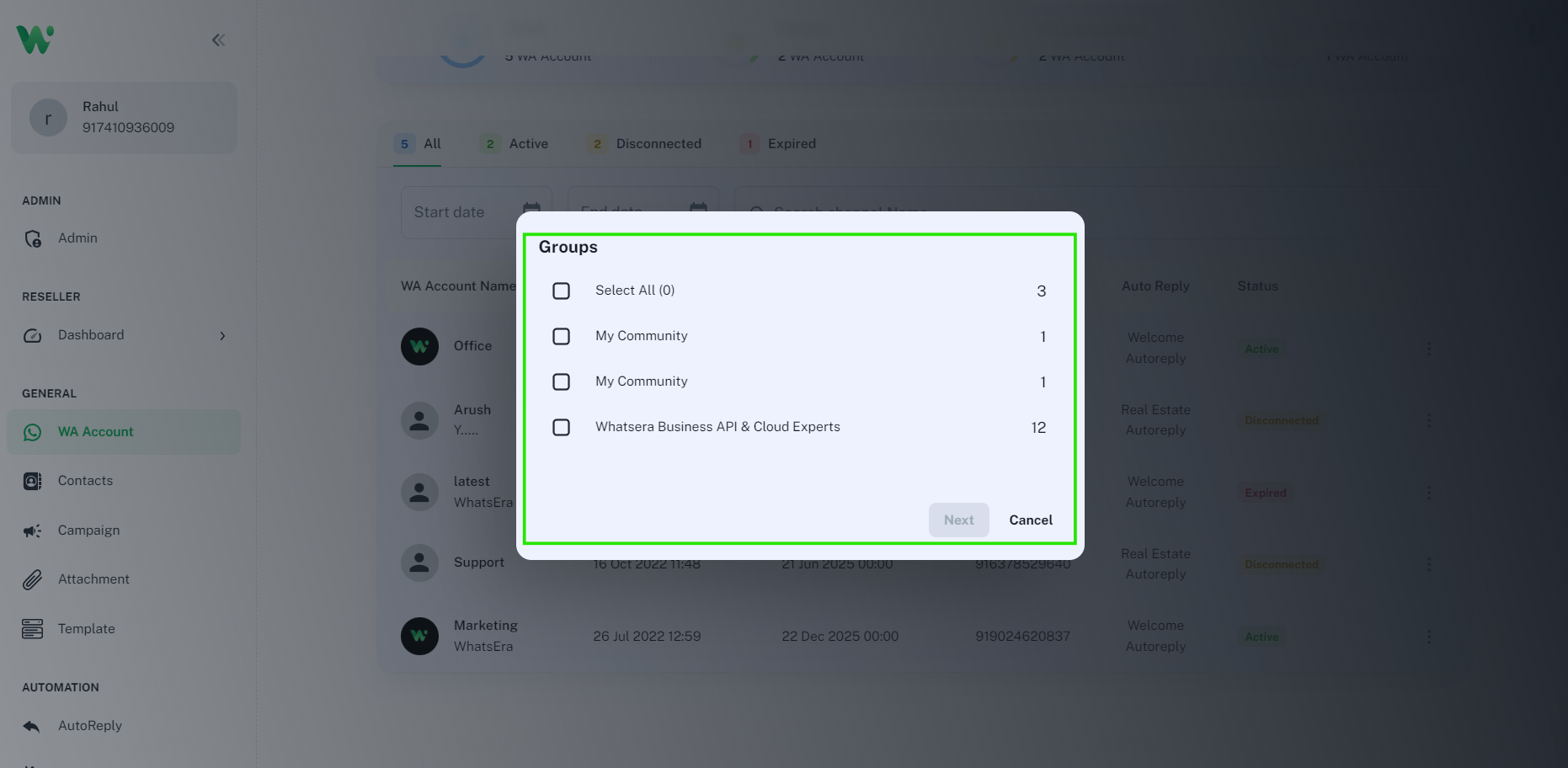
Fetch all WhatsApp groups and their members.
Organize group members into separate contact lists for targeted broadcasting.
Connect:
If your account disconnects or you want to switch to a different WhatsApp account, click Connect.
A new QR code will be generated, which you can scan with a different WhatsApp account.
Logout:
Remove your existing WhatsApp account from WhatsEra by logging out.
This option is essential if you wish to connect a different account.
Edit:
Update your account name for better organization.
Enable auto-reply features for the specific account directly from this option.
Benefits of the WA Account Feature in WhatsEra
Centralized control over multiple WhatsApp accounts.
Easy switching between accounts.
Efficient group and contact management.
Real-time updates on account activity and connectivity status.
By integrating your WhatsApp account with WhatsEra, you gain a streamlined approach to managing your business communications, ensuring that you stay connected and efficient.
Additional Notes for WA Account
1. Disconnected Status
If your WA account status shows as Disconnected, none of the WhatsEra features will function for that account.
Why Does This Happen?
Session Removed: You may have removed the linked session from your WhatsApp account.
Account Ban: Your WhatsApp account might have been banned by WhatsApp.
What You Need to Do:
Simply click on the three dots menu.
Select Connect to generate a new QR code.
Scan the QR code with your WhatsApp account (or use a different WhatsApp account) to reconnect.
2. Due Date for WA Account
Each WA Account (also called a Channel) in WhatsEra has a due date indicating the validity period of the plan linked to that account.
What Does It Mean?
No Due Date: If the due date is missing, it means the account does not have an active plan.
Action Required: To continue using WhatsEra features, either:
Upgrade Your Plan: Activate a valid plan for the account.
Use an Activated WA Account: Switch to another account with an active plan.
Has a Due Date: This is the expiry date of your current WA Account plan.
If you have a single WA Account, this due date indicates when your entire WhatsEra access ends.
If you have multiple WA Accounts, each one has its own due date based on its individual plan.
✅ To continue using WhatsEra, make sure to renew your plan before this date.
3. Expired Status
If the status of your WA account shows as Expired, it means the plan associated with that account has expired.
What You Need to Do:
Renew your plan by contacting the WhatsEra team to regain access to the platform.
Until renewed, the account will not be functional in WhatsEra.
Key Reminders:
Always monitor your WA account status in WhatsEra to ensure uninterrupted access to features.
Keep your plans updated to avoid downtime or service disruptions.
By addressing these points promptly, you can ensure smooth and efficient operations using WhatsEra’s platform.
WhatsApp Account Issues: Banned, Blocked, Flagged, or Restricted
Our platform allows you to send any number of messages—10, 100, or even 500. We do not impose restrictions. However, blocking or banning is entirely controlled by WhatsApp. To reduce the risk, always follow best practices when sending messages. If your number gets blocked, refer to the section below to request an unban.
Banned:
If your WhatsApp account is banned, it’s likely due to spam activity or multiple reports against your account. To resolve this:
Open WhatsApp and attempt to create or log in to your account.
For WhatsApp Business, use the in-app option to contact support. For regular WhatsApp, submit a support request stating, "My account is not working."
Wait for WhatsApp to review and unban your account. After reinstatement, avoid using the account for 10–15 days, as immediate activity may trigger another ban since WhatsApp treats it as a new account.
Best Practice for WhatsApp Marketing: Use multiple phone numbers as backups. Rotate between numbers if one gets banned, and resume using the unbanned number after the waiting period for better results.
Blocked:
If you mean "blocked" in the context of a ban, follow the steps in the Banned section above.
If a user has blocked your account, you cannot send messages to them, as they’ve restricted communication. In this case, no action can be taken to message them.
If you want to avoid messaging such users, refer to our Unsubscribe guide for better management of your contact list.
Flagged:
If your account is flagged (often related to suspected spam), follow the steps outlined in the Banned section for resolution.
Restricted:
If you have a Meta Verified WhatsApp Business account, Meta typically restricts your account for 24 hours instead of an immediate ban for first-time violations. During this period:
You cannot send messages to new numbers, only to existing chats or saved contacts.
Avoid sending bulk messages for a few days after the restriction is lifted. Gradually resume messaging (e.g., 20 messages on day one, 50 on day two) and limit to 200 messages per day from a single number to prevent further restrictions.
Meta Verified:
For bulk messaging, we recommend opting for Meta Verified on your WhatsApp Business account. While it doesn’t guarantee immunity from bans, it significantly reduces the likelihood of bans based on our customers’ experiences.
To avoid restrictions or bans, we recommend do not send more than 200 messages per day from a single WhatsApp number. If you need to send more, use alternate numbers to distribute your messaging volume and stay within WhatsApp’s guidelines.